Urdu Computing Architecture: From Windows Keyboard Setup to InPage Integration
Need native Urdu typing on modern PCs alongside seamless compatibility with legacy publishing software? Discover how to deploy pak urdu installer for windows 10 and pak urdu installer for windows 11, configure the Urdu Phonetic Keyboard, and bridge text bi-directionally between Microsoft Office and InPage using our free online converter tools.
Table of Contents
- Why You Need Pak Urdu Installer for Windows 10 & 11
- Step-by-Step Installation on Windows 10 and Windows 11
- The Urdu Phonetic Keyboard Layout (Complete Mapping Table)
- The InPage vs. Unicode Dilemma: Understanding the Technology Gap
- How to Use the Unicode to InPage Converter Online
- Converting Legacy InPage Files with the InPage to Unicode Urdu Text Converter
- Urdu Typography Setup: Jameel Noori Nastaleeq vs. Nafees Naskh
- Troubleshooting Common Windows Urdu Typing Errors
- Frequently Asked Questions (FAQ)
Why You Need Pak Urdu Installer for Windows 10 & 11
Typing Urdu on personal computers was historically restricted to proprietary publishing programs like InPage. When Microsoft introduced multi-language support into Windows, users hoped for a native typing experience. However, Windows’ stock Urdu keyboard map was derived from the Arabic typewriter layout. On that default setup, pressing “B” on your hardware keyboard does not produce “ب” (Bay), nor does “P” produce “پ” (Pay), forcing writers to memorize an unintuitive layout.
The breakthrough solution is Pak Urdu Installer, created by Muhammad Zeeshan Nasr. Instead of forcing users to install complex language packages or juggle separate typing programs, Pak Urdu Installer provides an all-in-one automation script. It accomplishes three crucial tasks in a single execution:
- Activates System-Level Urdu Support: Enables Right-to-Left (RTL) text rendering engines across both 32-bit and 64-bit Windows architectures.
- Installs the Urdu Phonetic Keyboard: Pairs every English key with its corresponding Urdu phoneme (e.g., A → ا, B → ب, P → پ, T → ت, K → ک, G → گ).
- Installs Premier Nastaleeq and Naskh Fonts: Directly registers Jameel Noori Nastaleeq, Nafees Web Naskh, and Urdu Typesetting into your Windows Font vault, giving you authentic calligraphy across MS Word, web browsers, and graphic software.
Whether you are configuring pak urdu installer for windows 10 on an office workstation or setting up pak urdu installer for windows 11 on a modern laptop, the underlying phonetic engine allows you to draft emails, create social media posts, design Photoshop banners, and manage spreadsheets in Urdu without touching legacy software.
Step-by-Step Installation on Windows 10 and Windows 11
Installing the utility takes less than three minutes. Follow these verified installation instructions for both Windows 10 and Windows 11 systems:
Prerequisites:
Ensure you have administrative privileges on your PC. Save any active office documents, as Windows requires a quick reboot after installation to load the new phonetic keyboard drivers into the operating system kernel.
Step 1: Download the Offline Setup File
Visit our verified Pak Urdu Installer Download Hub. The standalone installer package (approximately 11 MB) contains both 32-bit and 64-bit binaries alongside the complete font suite.
Step 2: Run as Administrator
Navigate to your Downloads folder. Right-click on PakUrduInstaller.exe and choose “Run as administrator”. If Windows SmartScreen or User Account Control (UAC) prompts you with a verification pop-up, click “Yes” to allow setup permissions.
Step 3: Complete the Installation Wizard
The automated setup window will launch. Click “Next” to accept the default configuration. The installer automatically registers:
- Urdu (Pakistan) language input profile
- Phonetic Keyboard layout DLL files
- Jameel Noori Nastaleeq regular & Kasheeda fonts
- Nafees Web Naskh TrueType font files
Step 4: Restart Your Computer
At the final screen, the installer will request a system restart. Select “Restart Now” and click “Finish”. Once your desktop reloads, you will see the language badge ENG appear in the Windows taskbar next to the clock.
Step 5: Toggle Between English and Urdu
You can now toggle your typing language on any text field or application with a quick physical keyboard shortcut:
When Urdu is active, the taskbar icon switches from ENG to UR (Urdu Pakistan). Open Microsoft Word or Notepad, press the shortcut, select Jameel Noori Nastaleeq from your font dropdown, and start typing.
The Urdu Phonetic Keyboard Layout (Complete Mapping Table)
The true power of Pak Urdu Installer is the logical phonetic mapping. Each Urdu character is assigned to its English phonetic equivalent. Below is the complete reference guide for standard and Shift key combinations:
The InPage vs. Unicode Dilemma: Understanding the Technology Gap
While Pak Urdu Installer allows you to type directly into Windows 10 and Windows 11 apps, millions of Pakistani newspapers, publishers, court typists, and book authors still work inside InPage Urdu (such as InPage 2000, InPage 2009, or InPage 3). This creates an enormous technology gap:
Legacy InPage Architecture (.inp)
Uses custom, non-standard 8-bit character mappings developed in the 1990s. Text copied directly out of InPage into Microsoft Word, Chrome, or WhatsApp turns into unreadable garbage symbols (such as ÀÂÃÄÅ or ????).
Cannot be indexed by search engines, cannot be sent in SMS/WhatsApp, and cannot be used in web HTML without conversion.
Modern Unicode Architecture (UTF-8)
Standardized worldwide by the Unicode Consortium. Every Urdu letter has a globally recognized hexadecimal code (e.g., U+0627 for Alif).
Natively supported by iOS, Android, macOS, Windows 10, Windows 11, Google Search, Facebook, YouTube comments, and Microsoft Office.
Because professional book publishers in Lahore, Karachi, and Rawalpindi demand InPage for its unmatched calligraphy page-makeup engine, writers constantly need to convert text between these two worlds. This is where dedicated online conversion utilities become indispensable.
How to Use the Unicode to InPage Converter Online
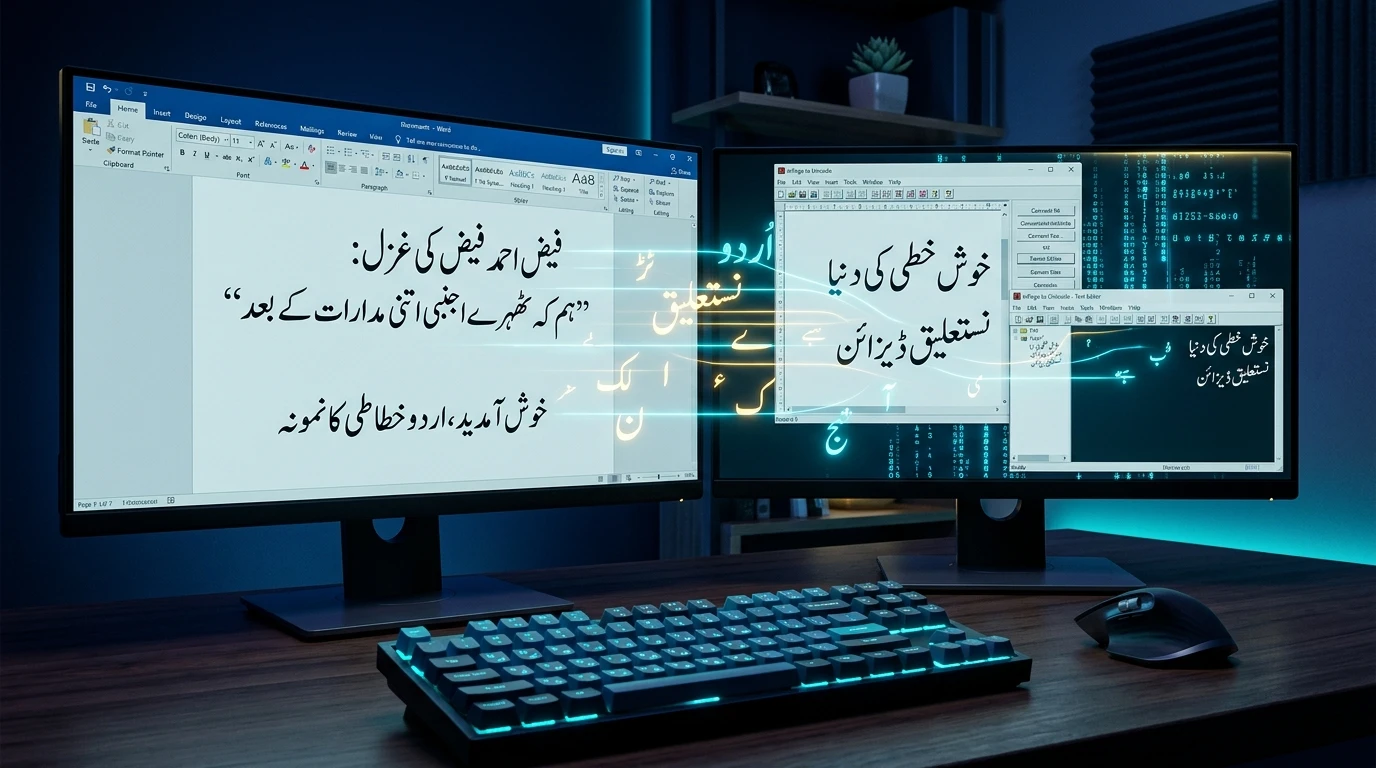
If you have written an article, legal affidavit, or thesis in Microsoft Word or on a website using Pak Urdu Installer, you cannot simply copy and paste it into InPage. It will paste as gibberish. You need a dedicated unicode to inpage converter online.
Follow these exact steps using our free, high-speed converter:
-
Copy Your Unicode Text: Highlight the Urdu text typed in Microsoft Word, Google Docs, or your web browser and press
Ctrl + C. - Open the Tool: Navigate to the Unicode to InPage Converter Online on Neksio Tools.
- Paste and Convert: Paste your text into the Unicode input box and click the “Convert to InPage” button. The tool instantly remaps UTF-8 character codes into InPage’s internal character page.
- Copy Converted Output: Click the “Copy InPage Text” button.
-
Paste into InPage: Open InPage, ensure your font is set to Noori Nastaleeq, create a new text frame or document, and press
Ctrl + V. Your text will render with 100% accurate ligatures and zero missing characters.
Convert Microsoft Word & Web Articles to InPage in Seconds
Our algorithm handles complex Persian-Urdu ligatures, Do-Chashmi Hay compounds (بھ, پھ, تھ), Tanween, and Arabic-Indic numerals without broken symbols.
Converting Legacy InPage Files with the InPage to Unicode Urdu Text Converter
The reverse situation is equally common: you have an archive of older InPage documents (.inp files), newspaper columns, or poetry collections, and you want to publish them on a WordPress website, share them on social media, or format them in modern graphic design suites like Adobe Photoshop, Illustrator, or InDesign.
Using our inpage to unicode urdu text converter, you can extract the exact wording in pristine digital form:
-
Copy Text from InPage: Inside your InPage window, select the text using the I-beam tool (or press
Ctrl + A) and pressCtrl + C. - Access the Web Converter: Open the InPage to Unicode Urdu Text Converter.
- Transform Text: Paste the copied contents into the input window and hit “Convert to Unicode”.
- Publish Anywhere: Copy the output and paste it directly into Microsoft Word, WordPress block editor, Facebook, or your video subtitle software. With Pak Urdu Installer’s Jameel Noori Nastaleeq font active, the text appears as authentic Nastaleeq calligraphy across all digital platforms.
Urdu Typography Setup: Jameel Noori Nastaleeq vs. Nafees Naskh
Choosing the correct font family for your project ensures that your Urdu writing looks polished and culturally authentic:
- Jameel Noori Nastaleeq: Modeled after classic Lahori and Dehlavi Nastaleeq calligraphy, this font features cascading ligatures, sloping lines, and traditional diacritics. It is best suited for formal books, legal notices, literary essays, poetry, and social media quotes.
- Nafees Web Naskh: Built on horizontal baselines, Naskh is specifically engineered for high-density reading on computer monitors and smartphone screens. It is ideal for news websites, government portals, online application forms, and mobile interfaces where vertical line height must remain compact.
- Urdu Typesetting: Designed by Microsoft, this font provides balanced vertical metrics, preventing text clipping in Microsoft Excel rows, financial tables, and accounting software.
Troubleshooting Common Windows Urdu Typing Errors
1. Urdu text appears as question marks (????) or empty boxes
This occurs when the software you are typing in does not support UTF-8 encoding or lacks a registered Urdu font. To fix this, change the font family in that software to Jameel Noori Nastaleeq or Arial, and ensure Windows regional encoding is set to Unicode UTF-8.
2. Shortcut keys do not toggle language in Windows 11
In Windows 11, open Settings → Time & Language → Typing → Advanced keyboard settings → Input language hot keys. Verify that Between input languages is checked and assigned to Left Alt + Shift or use Win + Spacebar.
3. Broken ligatures when pasting into Photoshop
If letters appear disconnected or reversed in Adobe Photoshop, go to Preferences → Type and select “World-Ready Layout” (or Middle Eastern features). Restart Photoshop, create a new text layer, and your Nastaleeq text will connect seamlessly.
Frequently Asked Questions (FAQ)
Is Pak Urdu Installer free for commercial and government use?
Yes, Pak Urdu Installer is 100% freeware and safe for personal, corporate, educational, and government computers across Pakistan and international jurisdictions.
Does Pak Urdu Installer slow down Windows 10 or Windows 11 startup?
Not at all. It does not run background processes or persistent system services. It simply registers standard keyboard input mappings and TrueType font files into Windows’ native system directories.
Can I use InPage without installing Pak Urdu Installer?
Yes, InPage functions independently because it contains its own built-in phonetic and monotype keyboards. However, without Pak Urdu Installer, you will not be able to type Urdu in MS Word, Excel, Photoshop, or web browsers outside InPage.
Equip Your PC with Urdu Computing Power
Empower your workflow with fluent Urdu typing on Windows 10 and 11, and effortlessly bridge the gap between InPage and Microsoft Word with Neksio’s free online suite.