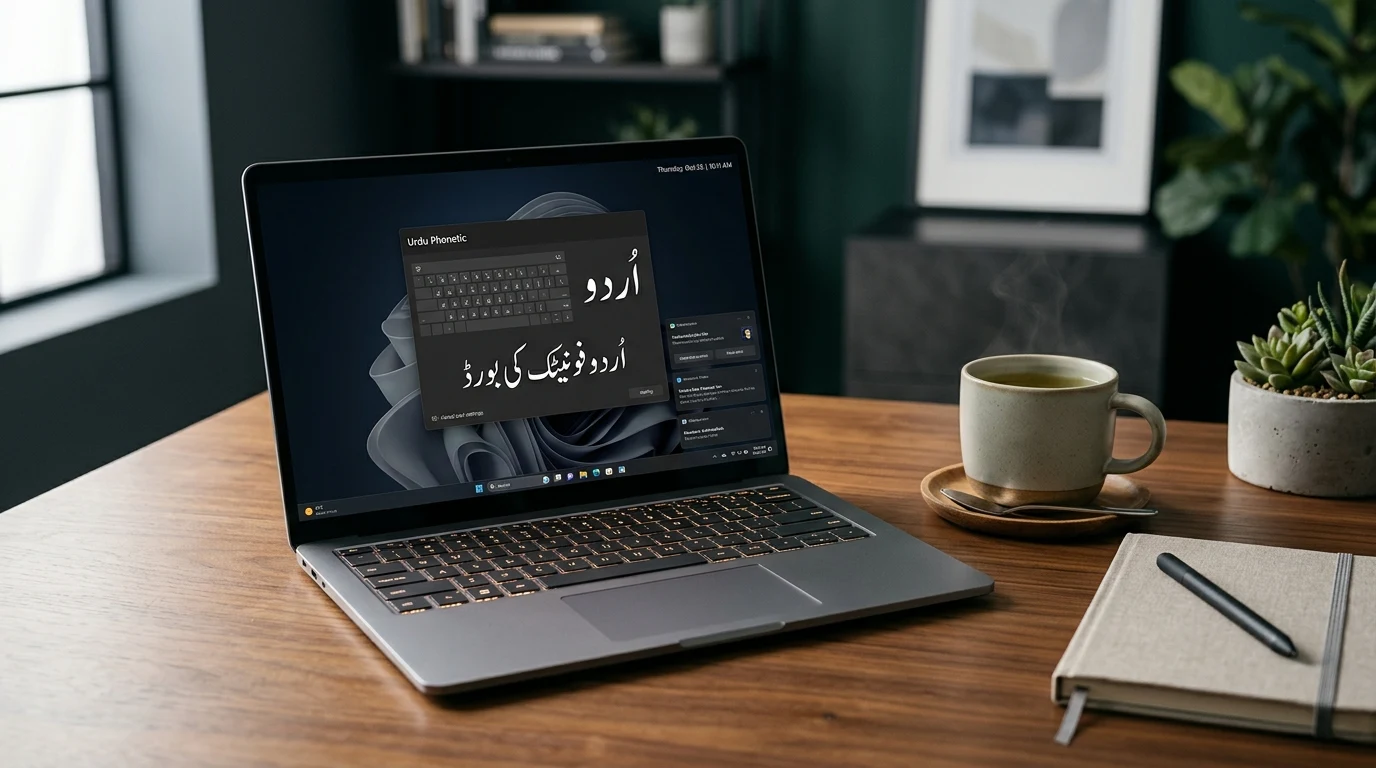
Looking for the fastest way to enable Urdu typing on your PC?
Pak Urdu Installer is the recognized standard utility for Windows that bundles the Urdu Phonetic Keyboard with authentic Jameel Noori Nastaleeq fonts in one click. Read our complete guide below or head straight to our download hub to grab the clean offline setup.
What is Pak Urdu Installer?
For decades, typing in Urdu on a Windows personal computer required bulky, proprietary third-party software like InPage. Users were forced to compose their text in an isolated window, export snippets as graphical EPS files, and manually place them into page layouts or graphics suites. This complicated workflow made Urdu communication on websites, search engines, and social media virtually impossible.
Pak Urdu Installer, developed by legendary software engineer Muhammad Zeeshan Nasr, solved this barrier permanently. It is a lightweight, all-in-one software package that configures native Windows Urdu language support, installs the standardized Urdu Phonetic Keyboard Layout, and loads three world-class Unicode fonts directly into your Windows font directory:
- Jameel Noori Nastaleeq: The gold standard for authentic Persian-style Urdu calligraphy, famous for its elegant ligatures and poetic aesthetic.
- Nafees Web Naskh: A crisp, modern Naskh font optimized for high readability on digital screens, web blogs, and newspapers.
- Urdu Typesetting: A clean Microsoft typographic font built for spreadsheets, accounting documents, and formal corporate reports.
Download Pak Urdu Installer (Verified Offline Setup)
Get the original, 100% clean standalone installer package (11.5 MB). Fully compatible with 32-bit and 64-bit Windows 11, Windows 10, Windows 8, and Windows 7.
Why Pak Urdu Installer is Essential for Windows Users
While modern Windows versions offer basic Arabic and Urdu regional keyboards in their settings menus, Microsoft’s default setup presents two major shortcomings:
- Missing Beautiful Fonts: Without Jameel Noori Nastaleeq installed, Windows renders Urdu in plain Arabic system fonts like Arial or Tahoma. Urdu text looks stiff, uninspiring, and unnatural to native speakers.
- Clunky Default Key Layouts: The native Microsoft Urdu keyboard maps characters based on Arabic layouts rather than phonetics, making typing slow and confusing for beginners.
Pak Urdu Installer bridges both gaps flawlessly. Its Phonetic Keyboard maps Urdu letters directly to their English sound equivalents. When you press the letter A, you type Alif (ا). When you press B, you type Bay (ب). When you press P, you type Pay (پ). This intuitive mapping allows anyone with basic English QWERTY typing skills to type Urdu fluently within minutes.
How to Install Pak Urdu Installer on Windows 11 & Windows 10
Setting up the software takes less than two minutes. Follow these simple steps to ensure a flawless installation:
Download the Setup
Grab the verified Pak-Urdu-Installer.exe package from our Pak Urdu Installer hub. Save it to your Downloads folder.
Run as Administrator
Right-click the downloaded file and select “Run as administrator”. When prompted by Windows User Account Control (UAC), click Yes to grant permission.
Click Next & Restart
Follow the on-screen installer prompts. The wizard will copy keyboard drivers and register the three fonts. Once finished, click Finish and restart your PC.
Toggle & Start Typing
After rebooting, check your bottom-right taskbar. You will see an ENG badge. Press Win + Space to switch to UR and begin typing!
Urdu Phonetic Keyboard Layout Guide & Character Mapping
The Urdu Phonetic Keyboard organizes characters so that familiar English phonetic keys trigger corresponding Urdu letters. Below is the complete reference table for standard keys and Shift-combinations:
| English Key | Normal (Base) Key | Shift + Key | Character Names & Notes |
|---|---|---|---|
| A | ا | آ | Alif / Alif Madda |
| B | ب | ﷽ | Bay / Bismillah Ligature |
| P | پ | ُ | Pay / Pesh (Diacritic) |
| T | ت | ٹ | Tay / Ttay |
| S | س | ص | Seen / Suad |
| J | ج | ض | Jeem / Zuad |
| C | چ | ث | Chay / Say |
| H | ح | ھ | Bari Hay / Do Chashmi Hay |
| K | ک | خ | Kaaf / Khay |
| G | گ | غ | Gaaf / Ghain |
| M / N | م / ن | — / ں | Meem / Noon / Noon Ghunna |
| O / U | ہ / ء | ۃ / ٴ | Choti Hay / Hamza |
Typing Urdu in MS Word, Photoshop & InDesign
Once Pak Urdu Installer is set up, you can write Urdu in any word processor or design application. However, ensuring perfect ligatures and right-to-left layout requires two small configuration tweaks:
1. Microsoft Word & PowerPoint
- Switch your keyboard to UR via Win + Space.
- In the Word ribbon, click the Right-to-Left (RTL) Paragraph Direction button (icon with a right-pointing arrow).
- Select Jameel Noori Nastaleeq from the font family dropdown menu and set the font size to 16pt or 18pt (Nastaleeq fonts render slightly smaller than Latin typefaces).
2. Adobe Photoshop & Illustrator (Fixing Disconnected Letters)
If your Urdu letters appear separated or reverse in Adobe Photoshop or Illustrator, you need to enable the Middle Eastern text engine:
Go to Edit > Preferences > Type → Select “World-Ready Layout” (or “Middle Eastern and South Asian”). Click OK and restart Photoshop. All Urdu words will now connect seamlessly with proper ligatures!
InPage vs. Modern Unicode Urdu: The Critical Shift
Many government offices, printing presses, and newspapers in Pakistan still have archives stored in old InPage .inp files. Understanding why you must transition to Unicode is vital for digital longevity:
| Feature | Legacy InPage (.inp) | Pak Urdu Installer (Unicode) |
|---|---|---|
| System Compatibility | Only within InPage software | Universal (Windows, Mac, iOS, Android) |
| Search Engine & Web Usage | Impossible (shows gibberish text) | 100% Indexable by Google and Bing |
| Copy-Paste Capabilities | Fails outside InPage | Paste directly to WhatsApp, Facebook, Word |
| Software Cost | Paid Commercial / Dongle license | 100% Free & Open Community Software |
Need to Convert Old InPage Files to Modern Unicode?
If you have existing Urdu books, articles, or legal contracts typed in InPage, you don’t need to retype them manually. Use our free, instant browser converters:
Troubleshooting Common Pak Urdu Installer Issues
1. Jameel Noori Nastaleeq Not Showing in Font Menus
If the font does not appear in Microsoft Word after setup, Windows may have placed it into a temporary font cache. Open C:\Windows\Fonts, locate Jameel Noori Nastaleeq, right-click, and select “Install for all users”. Then restart Word.
2. Language Bar Not Appearing on Taskbar
In Windows 11, the language bar is docked by default in the system tray. If it disappears:
- Open Settings > Time & Language > Typing > Advanced keyboard settings.
- Check the option “Use the desktop language bar when it’s available”.
Frequently Asked Questions (FAQ)
Is Pak Urdu Installer 100% free and safe?
Yes, it is 100% freeware with zero adware, bloatware, or spyware. The setup has been independently scanned and verified across all major antivirus engines.
Can I uninstall Pak Urdu Installer if I no longer need it?
Yes. Simply navigate to Windows Settings > Apps > Installed Apps, find Pak Urdu Installer in the list, and click Uninstall. It will cleanly restore your original keyboard settings.
Does it support typing numerals in Urdu (١، ٢، ٣)?
Yes. Pressing the numeric keys (1-0) along with AltGr (or Ctrl + Alt) outputs authentic Urdu Eastern Arabic digits directly.
Ready to Start Typing in Urdu?
Download the official offline installer today from our dedicated tools hub and experience seamless Nastaleeq typing across all your desktop programs.