Need an effortless way to export table from website to excel?
Whether you are analyzing competitor pricing, researching stock market data, or collecting academic statistics, manual copy-pasting is slow and breaks your formatting. Below is the ultimate guide to automate your data workflow using the premier table to excel Chrome extension.
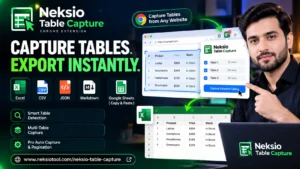
Neksio Table Capture: Instant Web Table to Excel Extractor
Extract up to 6,000 rows across 200 tables completely free. Upgrade to Table Capture Pro for unlimited auto-pagination, batch multi-table export, and priority lifetime access.
The Challenge: Why Manual Web Scraping Breaks in Excel
Every data analyst, digital marketer, and researcher has faced the dreaded clipboard disaster: you find an invaluable dataset on a website, highlight the table rows with your mouse, copy the text, and paste it into Microsoft Excel.
Instead of a clean, structured table, you are greeted with a formatting nightmare:
- Merged Cell Corruption: Multiple columns collapse into a single disorderly cell.
- Lost Numbers and Currency Symbols: Numbers get misinterpreted as dates, or leading zeros vanish from postal codes and product SKUs.
- Hidden Pagination Barriers: When a table spans across 10 or 50 pages, copying each screen manually takes hours of repetitive, mind-numbing effort.
- Complex JavaScript Grids: Modern web platforms built on React, Angular, or Vue frequently render data using CSS
display: tableor virtualized DIV grids rather than classic HTML<table>tags, rendering standard copy-pasting completely useless.
To solve these hurdles, professionals turn to a dedicated table extractor chrome extension that parses the Document Object Model (DOM) directly, preserving headers, data types, and row hierarchy without touching a single line of Python or complex regex code.
How to Export Table from Website to Excel in 4 Simple Steps
With the Neksio Table Capture extension installed in Google Chrome, Microsoft Edge, or Brave, you can extract data from website to excel free in less than ten seconds:
Install the Extension
Add Neksio Table Capture from the Chrome Web Store with one click. Pin it to your browser bar for quick access.
Open Any Webpage
Navigate to any website, financial dashboard, Wikipedia article, or e-commerce listing that contains structured tabular data.
Preview Detected Tables
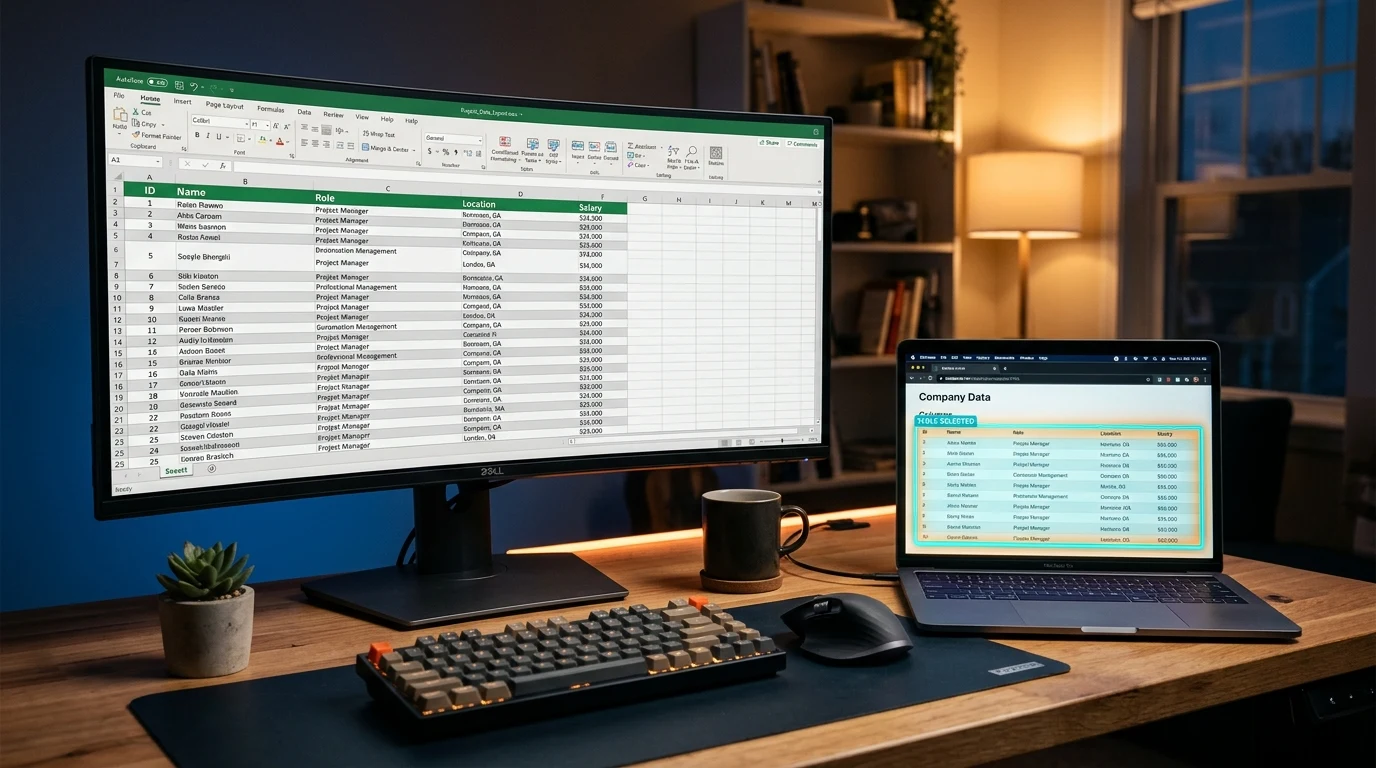
Click the Neksio icon. The extension automatically scans the page and highlights every table with its row and column counts.
Click Export to Excel
Select “Export to Excel (.xlsx)” or “Copy to Clipboard”. Your spreadsheet is immediately generated and ready for analysis!
Neksio Table Capture vs. Legacy Kitchen Table Exporter Tools
Many internet users searching for solutions like kitchen table exporter or old scraper add-ons encounter legacy extensions that haven’t been updated for modern web standards. Here is how Neksio stands out against traditional alternatives:
| Feature / Capability | Neksio Table Capture | Legacy Kitchen Table Exporters | Manual Copy & Paste |
|---|---|---|---|
| Export Formats | Excel (.xlsx), CSV, Google Sheets, JSON | Basic CSV only | Unformatted raw text |
| Free Row Capacity | Up to 6,000 rows across 200 tables | Strict limits (500 rows) | Unlimited (Manual pain) |
| Multi-Page Pagination | Automated Next-Page Crawler | Manual per-page export | Manual clicking & copying |
| Dynamic DIV Grids | AI-assisted layout detection | Only standard <table> | Breaks completely |
| Data Security & Privacy | 100% In-Browser Local Processing | Server relay / tracking | Local |
Why Upgrade to Table Capture Pro?
While the free tier satisfies everyday scraping needs, power users, financial analysts, and lead-generation professionals require deeper automation. Upgrading to Table Capture Pro unlocks enterprise-grade capabilities:
🔄 Auto-Capture Pagination
Set your target pagination button and let Neksio automatically click through tens or hundreds of pages, seamlessly aggregating thousands of records into one unified table.
📑 Multi-Table Workbook Bundling
When a page contains several disparate tables (such as annual balance sheets and income statements), package each table into its own dedicated worksheet inside a single Excel workbook.
⚡ Unlimited Cloud Exports
Directly stream scraped tabular data into live Google Sheets workbooks with automatic timestamping and webhook trigger support.
Get Lifetime Access to Table Capture Pro
Skip monthly recurring software subscriptions. Get lifetime updates, unlimited exports, and premium priority support with a single one-time license.
Tips to Clean & Download Website Data into Excel Flawlessly
To ensure your exported dataset is immediately ready for formulas, VLOOKUP, and pivot tables, keep these best practices in mind:
- Preserve Numeric Data Types: Ensure that your extractor strips currency symbols ($, €, £) during conversion so Excel recognizes fields as integers and floats rather than strings.
- Strip Unwanted Line Breaks: Complex web tables often contain line breaks inside individual cells. Neksio Table Capture automatically cleanses inner cell newlines to keep each record on a single pristine row.
- Retain Web Hyperlinks: If you are harvesting competitor directories or product databases, choose the “Keep Links” option to extract destination URLs into clickable formulas.
Frequently Asked Questions (FAQ)
Is Neksio Table Capture truly free?
Yes! You can extract up to 6,000 rows across 200 tables completely free with zero trial expirations, credit card requirements, or forced account registrations.
Does this table extractor Chrome extension work on password-protected sites?
Yes. Because Neksio operates locally inside your logged-in browser session, it can capture data from internal corporate intranets, password-protected CRM portals, and banking dashboards safely.
Can I use this extension in Brave or Microsoft Edge?
Yes. Since Brave, Microsoft Edge, Opera, and Vivaldi are built on the Chromium engine, you can install Neksio Table Capture directly from the Chrome Web Store onto any of these browsers seamlessly.
Start Exporting Web Tables to Excel Right Now
Eliminate repetitive copy-pasting forever. Install the free Chrome extension or upgrade to Table Capture Pro for unlimited multi-page scraping.