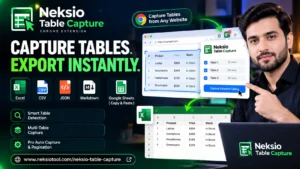
Extract HTML Table to Excel in Seconds Without Code
Discover how to convert complex web grids into formatted Microsoft Excel (.xlsx) workbooks effortlessly.
📋 Quick Guide Table of Contents
- 1. Why Manual Copy-Pasting Web Tables Breaks Everything
- 2. The Hidden Limitations of Excel’s Native “Data from Web” Feature
- 3. The Modern Solution: How Neksio Simplifies Web Data Extraction
- 4. How to Extract HTML Table to Excel in 4 Simple Steps
- 5. Combining Multiple Web Grids into a Single Multi-Sheet Excel File
- 6. Capturing Multi-Page Tables & Dynamic Pagination Automatically
- 7. In-Browser Data Sanitization: Cleaning Text Before Export
- 8. Comparison Matrix: Manual Copy vs Excel Query vs Neksio
- 9. Practical Workflows for Analysts, Marketers & Researchers
- 10. Frequently Asked Questions (FAQ)
1. Why Manual Copy-Pasting Web Tables Breaks Everything
If you have ever attempted to highlight a large data grid on a website and hit Ctrl+C followed by Ctrl+V into a blank spreadsheet, you already know the frustration. When users need to extract HTML table to excel, standard clipboard copying almost inevitably results in catastrophic formatting errors that require hours of tedious manual cleanup.
Web browsers render tabular data utilizing the Document Object Model (DOM) defined by W3C HTML Table specifications. While modern websites look visually appealing with interactive CSS styles, nested containers, responsive flex layouts, and custom badges, the underlying structure contains complex elements that basic desktop clipboards simply cannot interpret.
Common Nightmares of Manual Clipboard Pasting:
- Merged Column Collapses: Cells featuring
colspanorrowspanspan across adjacent rows, misaligning entire columns and shifting numerical data into text headers. - Accidental Date Conversion: Microsoft Excel frequently converts numeric codes, product SKUs, or ratios (such as “3-5” or “10/20”) into calendar dates automatically.
- Line Break Disasters: Hidden paragraph breaks (
<br>) split a single record across multiple vertical spreadsheet rows, destroying relational database integrity. - Ghost HTML Artifacts: Trailing non-breaking spaces (
), interactive buttons, SVG icons, and inline hyperlink anchors clutter cells with unparseable noise.
2. The Hidden Limitations of Excel’s Native “Data from Web” Feature
Seasoned spreadsheet users frequently turn to Microsoft Excel’s built-in feature located under Data > Get Data > From Web. When corporate users attempt to extract HTML table to excel using this legacy Power Query utility, they frequently encounter unexpected road blocks because the modern web has evolved far beyond static HTML documents.
Today, over 80% of modern web applications operate on single-page application (SPA) architectures built with React, Vue.js, Angular, or Next.js. Here is why the legacy “Data from Web” dialog consistently fails modern business workflows:
- No JavaScript DOM Execution: Excel’s internal web query engine fetches static server-side HTML. If the data grid is populated dynamically via client-side asynchronous REST APIs or GraphQL fetches, Excel renders an empty container.
- Authentication and Login Walls: Internal company portals, CRM dashboards, SaaS administration panels, and banking gateways require session cookies and OAuth tokens. Excel cannot authenticate through multi-factor authentication (MFA) or SSO barriers.
- Bot Mitigation Blockades: Cloudflare Turnstile, Akamai, and AWS WAF routinely flag Excel’s automated user-agent queries as robotic scrapers, serving a “403 Forbidden” or CAPTCHA challenge instead of the data.
- Complex Query Maintenance: When website layouts alter a single class name, Power Query scripts break silently, forcing analysts to reconfigure their connectors from scratch.
3. The Modern Solution: How Neksio Simplifies Web Data Extraction
To bypass both the messy copy-paste problem and the rigid limitations of desktop query tools, modern data professionals utilize specialized browser-native extractors. If you need to extract HTML table to excel quickly and reliably, the premier utility in this ecosystem is the best table capture Chrome extension: Neksio Table Capture.
Because Neksio operates directly inside Google Chrome or Microsoft Edge as a sandboxed client extension, it captures the fully rendered, live Document Object Model after all JavaScript scripts have finished executing. Whether you are logged into a password-protected financial portal, viewing an interactive sports dashboard, or inspecting an infinite-scroll e-commerce catalog, Neksio sees exactly what you see on screen.
Figure 1: Visual overview of how Neksio extracts HTML tables directly into clean, formatted Microsoft Excel workbooks.
4. How to Extract HTML Table to Excel in 4 Simple Steps
Let us walk through the exact practical workflow you can follow right now to extract HTML table to excel with flawless precision. There is no software setup, no Python scripting, and no credit card required.
Add Neksio Table Capture to Your Browser
The easiest pathway to extract HTML table to excel starts with getting the right tool. Navigate to the Chrome Web Store search page and click “Add to Chrome”. Once installed, click the puzzle icon in the top right corner of Chrome and pin the vibrant orange Neksio icon to your active toolbar for instant access.
Open Any Webpage Containing Tabular Records
Navigate to your target URL. This could be an SEC financial filings page, an international trade directory, a cryptocurrency order book, a real estate catalog, or an internal enterprise portal. Wait for the page to fully load its dynamic data elements. For scanned graphic invoices, you can also leverage our browser-based Image to Word Converter to extract optical text prior to structuring.
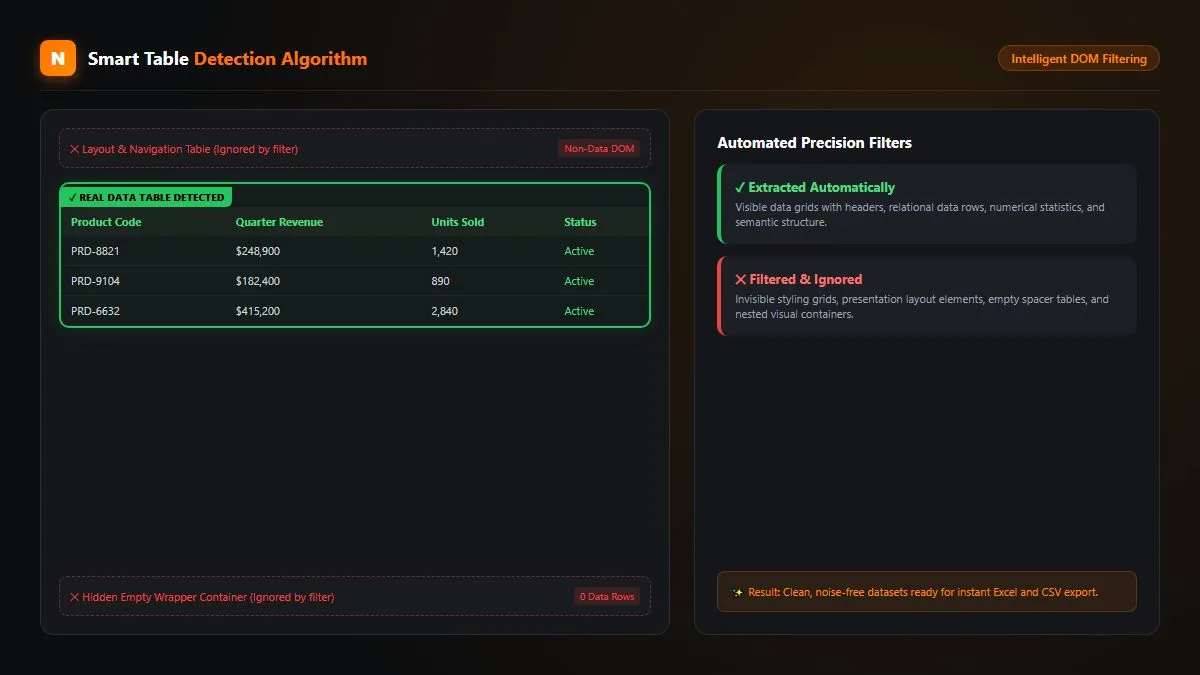
Figure 2: Neksio’s Smart Table Detection highlights all HTML tables, DIV grids, and aria data roles automatically.
Launch Neksio and Select Your Tables
Click the Neksio icon in your browser bar. The built-in Smart Detection Engine scans the page architecture and lists every detectable grid alongside its row and column counts. You can preview the live data in an interactive spreadsheet window, verify that columns align cleanly, and choose whether to capture a single table or multiple grids simultaneously.
Click “Export to Excel (.xlsx)” and Open Your Workbook
Click the green “Export to Excel (.xlsx)” button. As the extension finishes processing your request to extract HTML table to excel, it constructs a genuine binary Microsoft Excel document directly in your computer’s local memory. Within milliseconds, your browser downloads a pristine .xlsx file containing clean header rows, accurate numeric types, and zero broken cells.
5. Combining Multiple Web Grids into a Single Multi-Sheet Excel File
One of the biggest pain points when professionals attempt to extract HTML table to excel from information-dense pages is dealing with multiple distinct grids. Consider a corporate quarterly financial report: a single URL frequently includes an Income Statement, a Balance Sheet, a Cash Flow Statement, and multiple regional segment breakdowns.
Traditional browser tools force you to download each table individually, leaving your Downloads folder cluttered with dozens of disjointed CSV files that must subsequently be imported and merged manually.
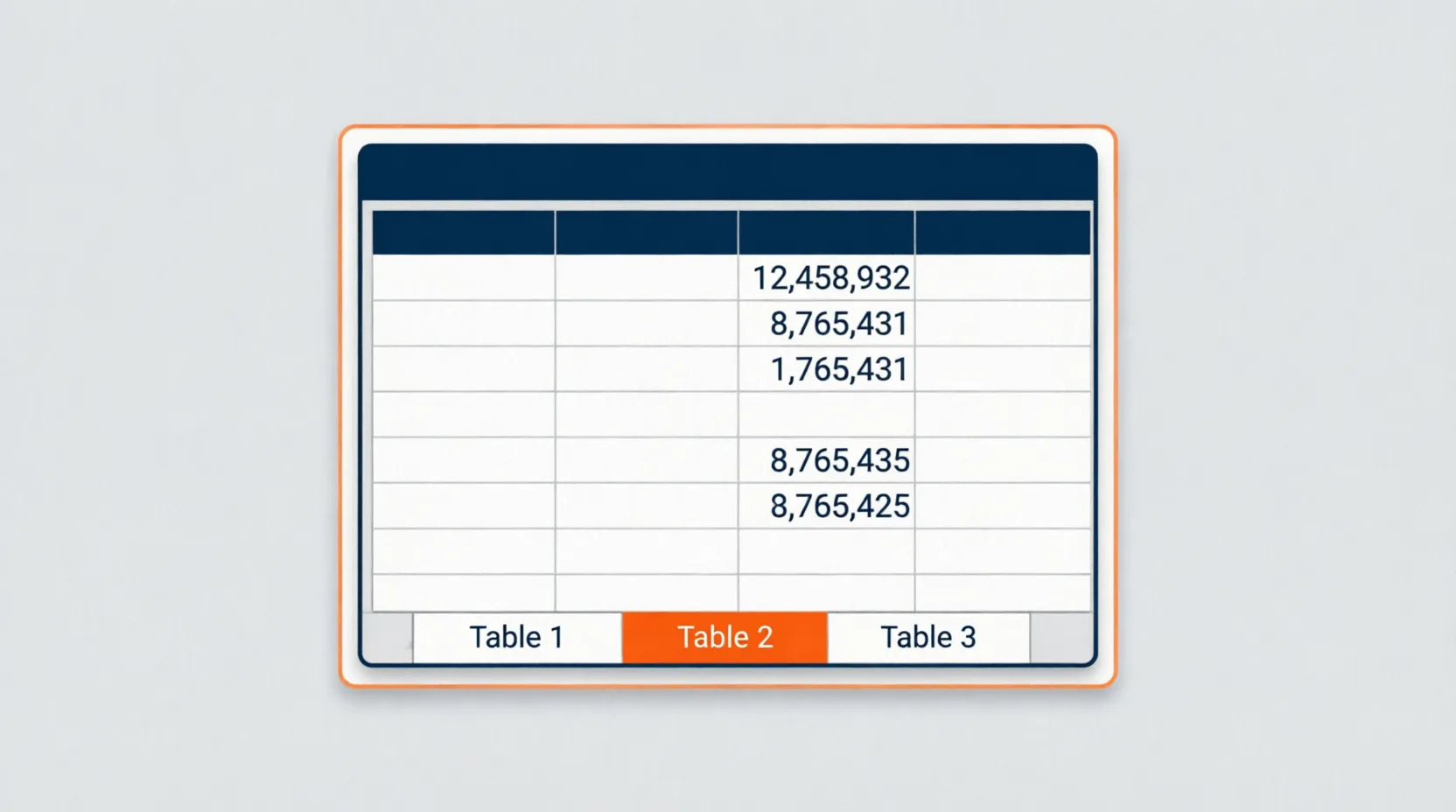
Figure 3: Neksio packages multiple selected web tables into dedicated named tabs inside a single unified Microsoft Excel workbook.
Neksio completely revolutionizes this bottleneck. When you select three, five, or ten different tables across the webpage, Neksio generates a unified Excel workbook. Each detected HTML table is automatically mapped to its own dedicated worksheet tab (such as Sheet1: Balance Sheet, Sheet2: Income Statement, and Sheet3: Segment Analysis). This saves analytical teams hours of repetitive spreadsheet restructuring every week.
6. Capturing Multi-Page Tables & Dynamic Pagination Automatically
What happens when the table you need spans across 20, 50, or 100 paginated web pages? Clicking “Next Page”, waiting for the reload, and copying each page individually is an agonizing chore. For enterprise analysts, discovering how to extract HTML table to excel across extensive pagination sequences without manual intervention is a game changer.
To solve this, Neksio incorporates an autonomous Auto Capture Multi-Page Crawler. By designating the “Next” button selector, users can instruct the extension to navigate through paginated sequences automatically.

Figure 4: The Auto Capture multi-page pagination crawler systematically aggregates thousands of paginated rows into one dataset.
The crawler includes configurable delay thresholds (e.g., 1,500ms to 3,000ms) to ensure AJAX endpoints load completely without triggering rate limits. Furthermore, all harvested records are buffered locally inside your browser’s persistent IndexedDB storage engine. If your internet connection hiccups or a tab accidentally closes, your accumulated records remain intact and recoverable.
7. In-Browser Data Sanitization: Cleaning Text Before Export
Raw website tables are often cluttered with extraneous characters, currency symbols, footnote markers, and unwanted action buttons (such as “View”, “Delete”, or “Edit”). When you extract HTML table to excel with Neksio, you do not have to wait until you open Excel to clean your data.
The interactive preview panel provides built-in spreadsheet editing tools directly inside Chrome:
- Inline Cell Editing: Double-click any cell in the live preview to modify typos or redact sensitive values immediately.
- One-Click Column Pruning: Click the trash icon on unwanted column headers (such as thumbnail image links or social share counts) to remove them from the final export.
- Regex Search & Replace: Strip out unwanted currency notations (like “$”, “€”, or “PKR”), clean non-numeric punctuation, or normalize telephone numbers in seconds.
- Trailing Space Trimming: Eliminate invisible zero-width spaces and newline breaks with the automatic whitespace sanitizer.
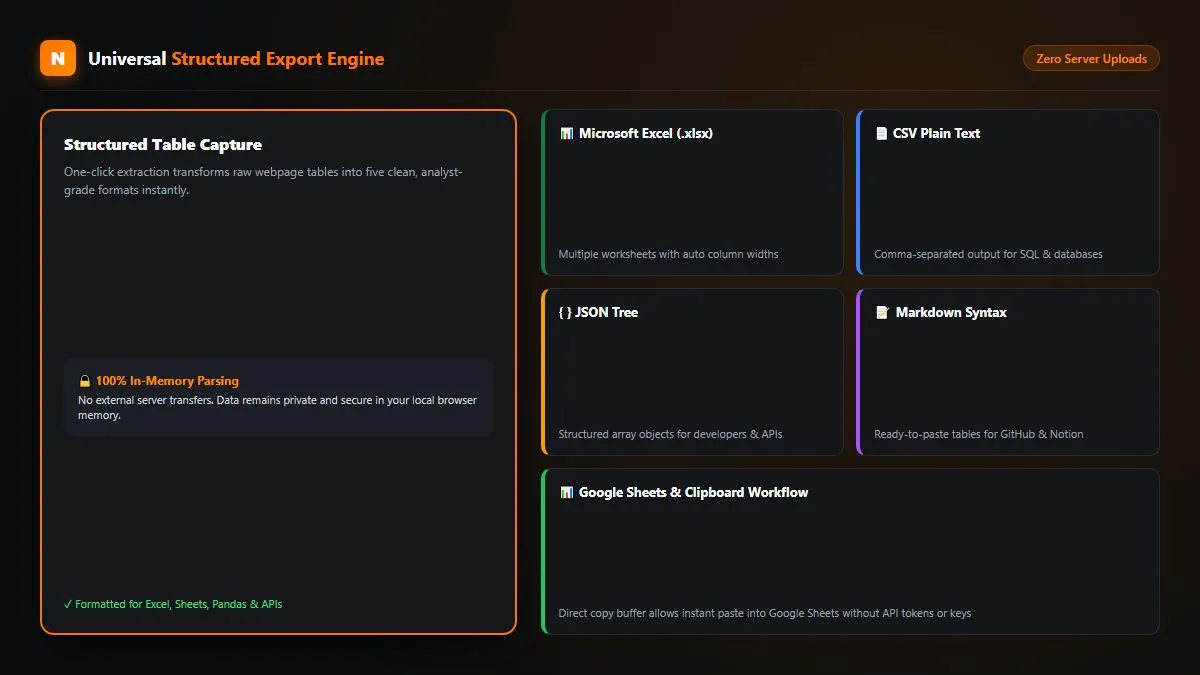
Figure 5: In addition to native Excel (.xlsx), Neksio supports instantaneous export to CSV, JSON, Markdown, and Google Sheets.
8. Comparison Matrix: Manual Copy vs Excel Query vs Neksio
To determine the most efficient approach to extract HTML table to excel for your daily workflows, examine how different extraction methodologies compare side by side across speed, accuracy, and technical complexity:
9. Practical Workflows for Analysts, Marketers & Researchers
The ability to reliably extract HTML table to excel transforms everyday productivity across multiple professional disciplines:
- Financial & Stock Market Analysts: Instantly capture balance sheets, historical stock yields, earnings per share summaries, and crypto token order books without subscribing to expensive proprietary API feeds.
- E-Commerce Sellers & Dropshippers: Extract competitor pricing matrices, inventory availability, shipping fee tiers, and product specification grids from multi-page supplier catalogs.
- Academic & Scientific Researchers: Harvest clinical trial datasets, public health statistics, meteorological archives, and census demographics directly into clean Excel workbooks for statistical analysis in SPSS or R.
- SEO Specialists & Digital Marketers: Scrape search engine SERP ranking matrices, backlink audit listings, and competitor content audit grids with zero coding overhead. Learn more in our comprehensive Neksio Table Capture guide.

Figure 6: High-volume enterprise workflows leverage Neksio Table Capture Pro for unlimited extraction capacity and automation.
10. Frequently Asked Questions (FAQ)
How do I extract HTML table to excel without coding?
The easiest method is to install the free Neksio Table Capture extension on Chrome or Edge. Open the website displaying the table, click the Neksio icon to detect the grid, and click “Export to Excel (.xlsx)”. The extension converts the table directly into an authentic Microsoft Excel document with zero coding required.
Can I extract tables from websites behind a login or password?
Yes. Because Neksio executes as a local browser extension within your active authenticated session, it can capture tabular datasets from private enterprise dashboards, CRM systems, banking portals, and password-protected intranets seamlessly.
Is my data sent to any third-party cloud servers during extraction?
No. Neksio operates entirely on-device within your browser sandbox. All DOM parsing, table structuring, and binary Excel file compilation occur locally in your browser memory. None of your extracted records or browsing sessions are transmitted to external servers.
How many rows can I capture for free with Neksio?
The free version of Neksio Table Capture permits you to capture up to 6,000 rows across up to 200 tables per session. For users requiring unlimited rows, automated multi-page pagination, and priority support, an affordable Pro lifetime upgrade is available.
Start Extracting Clean Web Tables Today
Eliminate messy copy-pasting forever. Whether you deal with financial ledgers, product inventories, or academic research, the fastest way to extract HTML table to excel is right at your fingertips with Neksio Table Capture.