
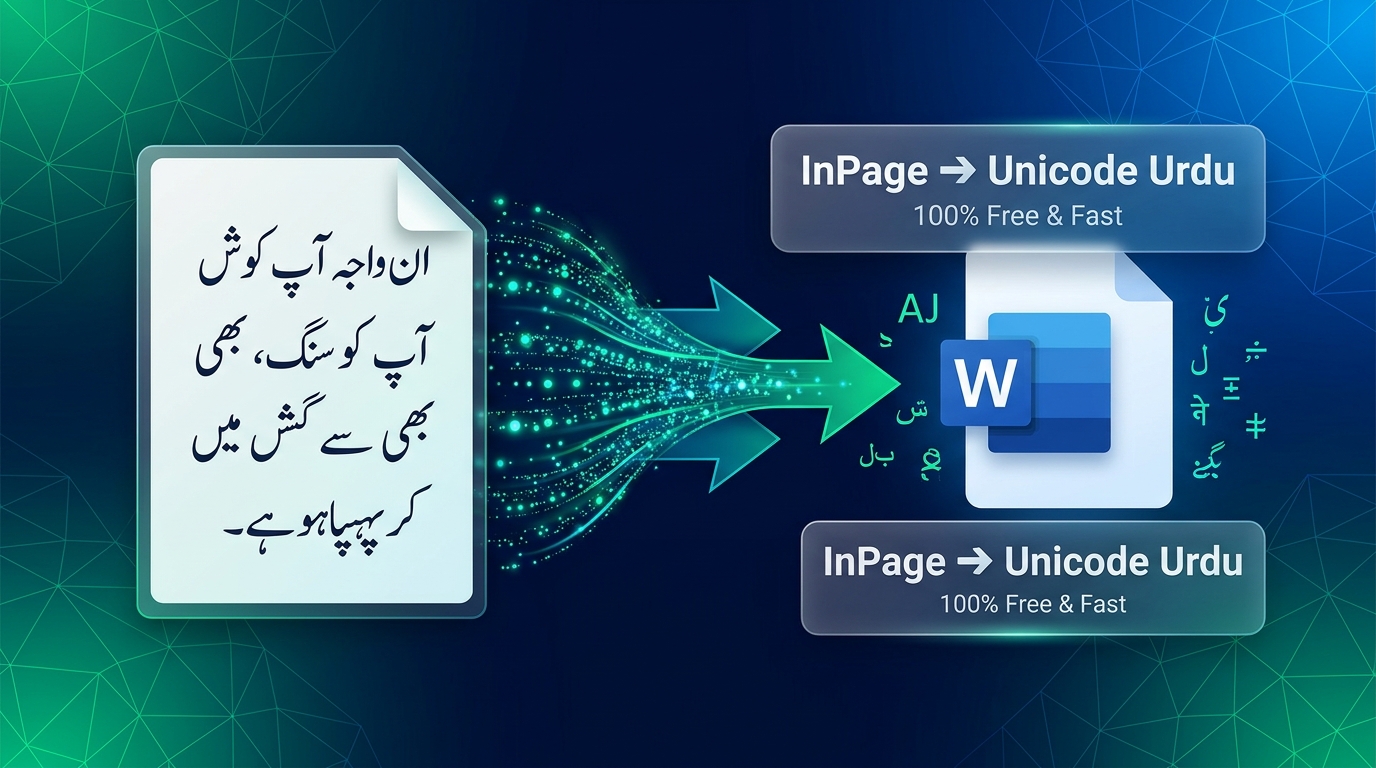
Need to convert InPage text right now?
Use our free, lightning-fast InPage to Unicode Urdu Converter. Convert entire book chapters, court petitions, news articles, and exam papers into clean MS Word-ready Unicode in less than a second. 100% private with zero server uploads!
Why Legacy InPage Urdu Won’t Copy to Modern Applications
For more than three decades, InPage Urdu has served as the backbone of the Pakistani publishing industry. From traditional newspapers like Daily Jang and Express to government gazettes, book publishing houses in Lahore’s Urdu Bazaar, and legal court typists, millions of critical documents remain locked inside InPage’s legacy format.
However, when you attempt to copy text from InPage 2000, InPage 2.4, or InPage 3 and paste it directly into Microsoft Word, Google Docs, Adobe Photoshop, WhatsApp, or a WordPress blog post, what you see is an unintelligible mess of strange symbols:
ƒپœ’„پ گ ‹¦ ‚پ‹ع ¤œ’¤¢ …¢گ ƒژ پژ‹¢ پ ƒ¤‡ œ ¢ژ…ژ پ‚ ذذرق ‹ژ’„ œپں(What InPage text looks like when pasted directly into standard software)
Why does this happen? InPage was engineered in 1994 before universal Unicode became the global standard for digital computing. Rather than storing letters as standardized Unicode characters (such as U+0627 for Alif), InPage assigns single-byte numbers (0x80 to 0xFF) corresponding to custom font glyphs. Modern operating systems reading that clipboard stream interpret those numbers using standard Latin (Windows-1252) or Arabic (Windows-1256) codepages, producing garbage symbols instead of meaningful Urdu words.
How to Convert InPage to Unicode in 4 Easy Steps
With Neksio’s InPage to Unicode Converter, unlocking your legacy Urdu files takes only seconds. Follow this straightforward workflow:
Copy from InPage
Open your file in InPage. Select the text you want to transfer using the text cursor (or press Ctrl + A for all) and press Ctrl + C.
Paste in Neksio Converter
Visit the InPage to Unicode tool and paste the text into the left box using Ctrl + V or click Paste.
Instant Auto-Conversion
With Live Instant Conversion enabled, your Urdu text appears immediately in the right box. Click the green “Copy Unicode Urdu” button.
Paste into MS Word
Open Microsoft Word, Google Docs, or Photoshop and press Ctrl + V. Select Jameel Noori Nastaleeq font for exquisite calligraphy.
Convert InPage Urdu to Unicode Online (100% Free)
No limits on word count. Bit-accurate character translation, full support for Urdu diacritics (Aeraab), numbers, and symbols.
How to Style Converted Urdu in Microsoft Word & Photoshop
Once your text is converted to Unicode, you can treat it just like standard English or Arabic text. However, to achieve the authentic Nastaleeq calligraphy appearance of InPage, you need to apply the correct font and layout settings:
1. Microsoft Word Setup
- Install Nastaleeq Fonts: If you haven’t already, download and install Pak Urdu Installer or follow our Pak Urdu Installer setup guide to get the official Jameel Noori Nastaleeq font.
- Right-to-Left (RTL) Direction: On the Word Home ribbon, click the Right-to-Left Paragraph Direction button (or press Ctrl + Right Shift) to ensure punctuation and commas appear on the correct side.
- Font Selection: Highlight your text and select Jameel Noori Nastaleeq from the font family dropdown. Set font size to 16–20 pt for optimal reading comfort.
2. Adobe Photoshop CC Setup
By default, Adobe Photoshop may disconnect Urdu letters and display them backwards from left to right. Here is how to activate proper cursive connecting script in Photoshop:
- Navigate to Edit > Preferences > Type.
- Under Choose Text Engine Options, select World-Ready Layout (or Middle Eastern and South Asian in older versions). Click OK and restart Photoshop.
- Select the Type Tool (T), open the Paragraph panel, and ensure the text direction is toggled to Right to Left.
- Paste your converted Unicode text and assign Jameel Noori Nastaleeq or Alvi Nastaleeq. All ligatures and characters will connect flawlessly!
InPage vs Unicode Urdu: Key Technical Differences
| Feature | Legacy InPage (.inp) | Modern Unicode Urdu (UTF-8) |
|---|---|---|
| Character Encoding | Proprietary Noori font mapping (1994) | Universal ISO/IEC 10646 standard |
| MS Word Compatibility | Fails (Garbage symbols / ?) | 100% Native & Fully Editable |
| Web & Social Media | Impossible (Must export as image/EPS) | Direct copy-paste to Facebook, WhatsApp, Web |
| Google SEO & Indexing | Invisible to search engine crawlers | Indexed, searchable, and rankable |
| Mobile Smartphone Support | Not supported on Android or iOS | Natively supported on all smartphones |
Why Neksio’s Converter Outperforms Other Online Tools
Many generic online converters produce broken characters when processing complex Urdu documents because they rely on outdated translation scripts. Neksio’s converter was built from the ground up to solve every known edge case in Urdu typography:
- Dual Codepage Architecture (CP1252 + CP1256): Unlike older converters that only work on English Windows, Neksio automatically recognizes Urdu bytes whether your Windows system is configured with English (CP1252) or Pakistani/Arabic regional settings (CP1256).
- Automatic Number & Percentage Correction: InPage stores numbers and percentages (such as
۱۰۰٪) in reverse order for its right-to-left buffer. Neksio automatically restores digits to their natural reading sequence. - Complete Diacritics (Aeraab) Preservation: Essential religious and poetic diacritics including Zabar (َ), Zer (ِ), Pesh (ُ), Tashdeed (ّ), Tanween (ً, ٍ, ٌ), Khari Zabar (ٰ), and Jazm/Sukun (ْ) are flawlessly preserved without disconnecting neighboring letters.
- Sacred Ligatures: Special religious symbols such as ﷺ (Sallallahu Alayhi Wasallam), ﷲ (Allah), ؑ (Alayhis Salam), and ؓ (Razi Allahu Anhu) are mapped to their standardized Unicode code points.
Frequently Asked Questions (FAQs)
Can I convert an entire InPage .inp file directly?
Yes! Simply open your .inp document inside InPage, press Ctrl + A to select all text, copy it with Ctrl + C, and paste it directly into our converter. There is no limit on word count.
How do I convert Unicode Urdu back into InPage format?
If you have text typed in MS Word, Google Docs, or WhatsApp and need to paste it into InPage, use our companion Unicode to InPage Converter. You can also click the “Swap Directions” button directly on the converter page.
Why do English words in my InPage document look normal?
Neksio’s conversion algorithm automatically differentiates between proprietary InPage Urdu font codes and standard ASCII English characters. English names, formulas, and dates inside your Urdu document remain untouched and readable.
Is this InPage to Unicode converter completely free?
Yes, 100% free with no registration, subscriptions, or hidden fees. You can bookmark the tool and use it whenever you need to transfer Urdu text between InPage and modern software.