Feet to Pixels: How to Convert Feet to Pixels Accurately (Complete Guide)
Bridging the gap between the physical and digital worlds is a fundamental challenge in modern design, development, and printing. Whether you are designing a massive 10-foot trade show banner, setting up a large-format canvas in Photoshop, or coding a responsive web layout, you will inevitably face a critical question: How do I accurately convert feet to pixels?
Unlike simple metric conversions, translating physical length (feet) into digital resolution (pixels) is not a static calculation. It depends entirely on the target medium’s density, measured in DPI (Dots Per Inch) or PPI (Pixels Per Inch). A single foot can equal 864 pixels for a web graphic or a staggering 3,600 pixels for a high-quality print. Getting this wrong results in pixelated, blurry, or distorted output, wasting both time and resources.
This comprehensive, EEAT-optimized guide will demystify the Feet to Pixels conversion process. We will break down the exact mathematical formulas, explain the critical differences between screen resolution and print resolution, highlight common pitfalls, and show you how to use our free Feet to Pixels Converter to guarantee flawless results every time.
📌 Quick Summary: The Feet to Pixels Formula
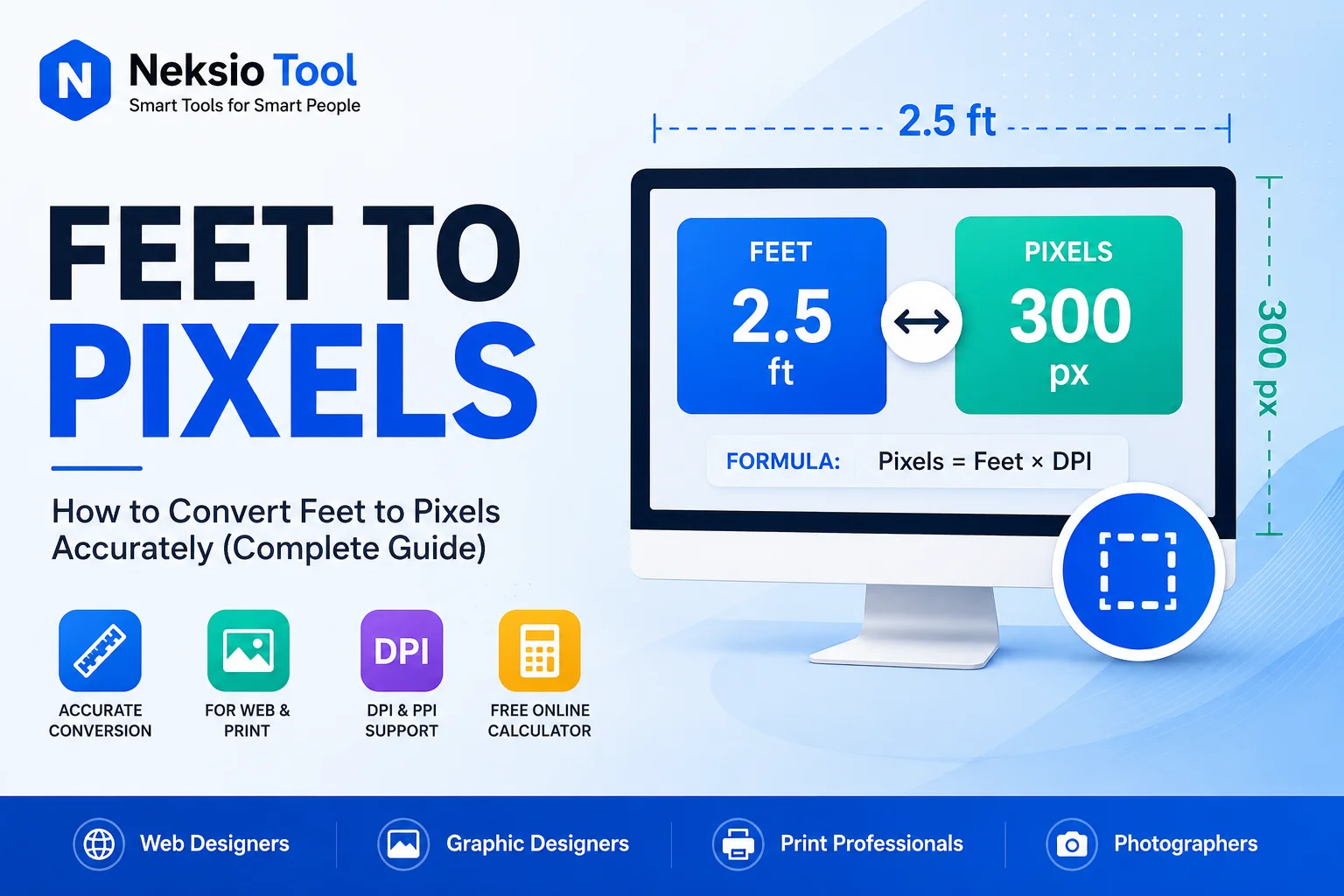
To convert feet to pixels, use this universal formula:
Pixels = (Feet × 12) × DPI
- Step 1: Multiply the number of feet by 12 to get total inches.
- Step 2: Multiply the total inches by your target DPI (e.g., 96 for web, 300 for print).
- Example: 2 feet at 300 DPI = (2 × 12) × 300 = 7,200 pixels.
📑 Table of Contents
- Understanding the Units: Feet, Pixels, DPI, and PPI
- The Exact Formula: How to Convert Feet to Pixels
- Screen Resolution vs. Print Resolution: Why It Matters
- Step-by-Step Guide to Using the Feet to Pixels Converter
- Practical Examples & Real-World Use Cases
- Feet to Pixels Comparison Chart (72 to 300 DPI)
- Common Mistakes When Converting Feet to Pixels
- Best Practices & Pro Tips for Digital Designers
- EssRelated Tools for Image Optimization
- Frequently Asked Questions (FAQs)
- Key Takeaways & Final Thoughts
Understanding the Units: Feet, Pixels, DPI, and PPI
Before diving into the mathematics of a Feet to Pixel Converter, it is essential to define the core units of measurement. Confusing these terms is the primary reason designers end up with low-quality digital images or rejected print files.
1. The Foot (Physical Measurement)
A foot is a standard unit of length in the imperial system, equal to 12 inches. In the design world, feet are typically used to measure large-format physical outputs, such as billboards, vehicle wraps, trade show booths, and large wall murals.
2. The Pixel (Digital Measurement)
A pixel (short for “picture element”) is the smallest controllable element of a picture represented on a digital screen. Unlike a foot, a pixel has no inherent physical size. A pixel is simply a data point containing color information. Its physical manifestation depends entirely on the display or print medium.
3. DPI (Dots Per Inch)
DPI refers to the number of individual dots of ink a printer can place within a one-inch line. It is the standard metric for print resolution. Higher DPI means more dots are packed into the same space, resulting in sharper, more detailed physical prints.
4. PPI (Pixels Per Inch)
PPI refers to the number of square pixels displayed within a one-inch line on a digital screen. It is the standard metric for screen resolution and digital image files. While often used interchangeably with DPI in casual conversation, PPI is the technically correct term for digital canvas size and image dimensions.
The Exact Formula: How to Convert Feet to Pixels
Converting feet to pixels requires a two-step mathematical process. Because pixels are defined by their density per inch, you must first convert the macro measurement (feet) into the micro measurement (inches) that the density metric (DPI/PPI) uses.
The Universal Conversion Formula
Total Pixels = (Feet × 12) × Target DPI/PPI
Breakdown of the Formula:
- Feet × 12: This converts your measurement from feet to inches. (e.g., 3 feet = 36 inches).
- × Target DPI/PPI: This multiplies the total inches by the required density, yielding the total number of pixels needed to maintain quality at that size.
Calculation Example: You need to design a digital banner that will be printed at 4 feet wide, and your printer requires 150 DPI.
Math: (4 feet × 12) = 48 inches.
48 inches × 150 DPI = 7,200 pixels.
Your canvas width must be set to 7,200 pixels in your graphic design software.
Screen Resolution vs. Print Resolution: Why It Matters
One of the most critical concepts in mastering feet in pixels is understanding that the “right” pixel count changes drastically depending on whether the final output is viewed on a screen or on paper.
The Web Design Standard (72 to 96 PPI)
Historically, 72 PPI was the standard for Mac screens, and 96 PPI became the standard for Windows. In modern web design, we use “CSS pixels,” which are relative units. A standard web hero image might be designed at 1920 pixels wide (roughly 20 feet at 96 PPI, but viewed much smaller on a monitor). However, with the advent of High-DPI “Retina” displays, web assets are often exported at 2x or 3x resolution (144 to 288 PPI) to ensure digital images remain crisp on smartphones and 4K monitors.
The Print Standard (300+ DPI)
Printers require significantly more data to create the illusion of a continuous, smooth image. The universal gold standard for professional print resolution is 300 DPI. If you design a 1-foot by 1-foot poster at 96 PPI (1,152 pixels), and send it to a printer expecting 300 DPI, the printer will either stretch those pixels (resulting in a blurry, blocky mess) or reject the file entirely. For large-format printing viewed from a distance (like a 10-foot billboard), the required DPI drops (often to 100–150 DPI), because the human eye cannot resolve fine detail from 50 feet away.
Step-by-Step Guide to Using the Feet to Pixels Converter
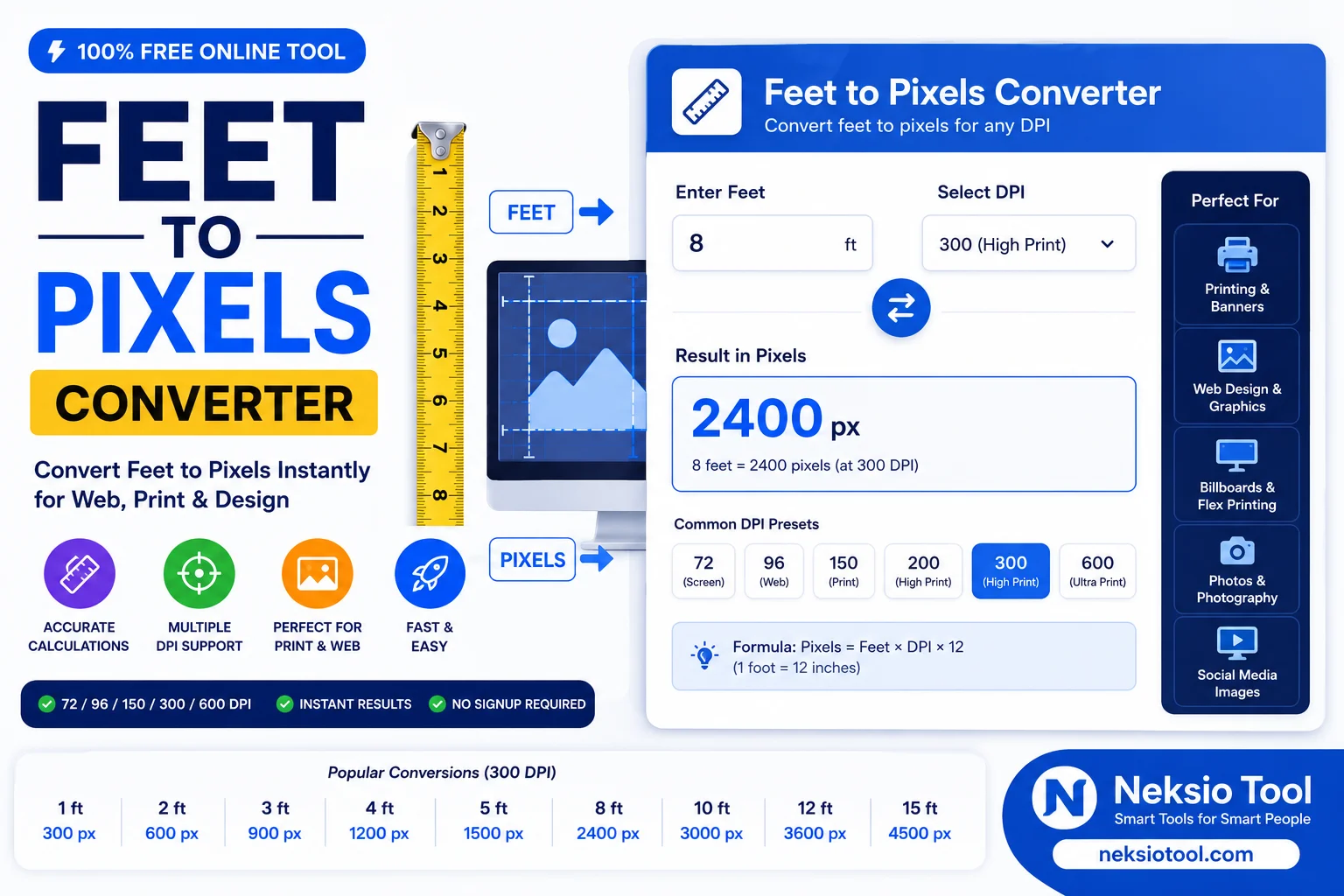
While manual calculation is useful for understanding the concept, using a dedicated Feet to PX tool eliminates human error and saves valuable time. Here is how to use the Neksio Tool Feet to Pixels Converter effectively:
- Navigate to the Tool: Open the Feet to Pixels Converter in your web browser.
- Enter Your Measurement: Input the length or width of your project in feet. You can enter decimals (e.g., 2.5 feet) for precise measurements.
- Select Your Target Resolution (DPI/PPI): Choose the appropriate density for your project. Select “300” for standard print, “96” or “144” for web/screen, or enter a custom DPI if your print vendor specified one.
- Generate the Result: Click the “Convert” button. The tool will instantly calculate and display the exact pixel dimensions required.
- Apply to Your Software: Open Photoshop, Illustrator, Figma, or Canva, create a new document, and input the generated pixel value into the width or height field.
Practical Examples & Real-World Use Cases
To solidify your understanding of how to convert feet to pixels, let us examine three common professional scenarios.
Case Study 1: The E-commerce Web Banner (Screen)
Scenario: A web designer needs a full-width hero banner for a desktop website. The design brief specifies the banner should visually represent a 3-foot wide physical sign, but it will be displayed on a standard 1080p monitor (96 PPI baseline, but targeting 2x Retina displays).
Calculation: 3 feet × 12 = 36 inches.
Target PPI: 192 (2x Retina).
36 × 192 = 6,912 pixels.
Action: The designer creates a canvas that is 6,912 pixels wide. After designing, they can use the Neksio Image Resizer to create a scaled-down 1x version (3,456 pixels) for faster loading on non-Retina devices.
Case Study 2: The Trade Show Backdrop (Large Format Print)
Scenario: A marketing team is printing a 10-foot wide by 8-foot high vinyl backdrop for an exhibition. The print shop specifies a minimum of 100 DPI for large vinyl prints.
Calculation (Width): 10 feet × 12 = 120 inches. 120 × 100 DPI = 12,000 pixels.
Calculation (Height): 8 feet × 12 = 96 inches. 96 × 100 DPI = 9,600 pixels.
Action: The graphic designer sets their canvas size to 12,000 x 9,600 pixels. Because this creates a massive file, they will likely work with linked smart objects and export the final file using the PNG to WebP Converter or a high-quality compressed JPEG to manage file size without losing visual fidelity.
Case Study 3: The Custom Canvas Art (Fine Art Print)
Scenario: A photographer wants to print a landscape photo on a 4-foot wide fine art canvas. Fine art printing demands the highest quality: 300 DPI.
Calculation: 4 feet × 12 = 48 inches. 48 × 300 DPI = 14,400 pixels.
Action: The photographer must ensure their original camera capture or scan is at least 14,400 pixels wide. If it is only 6,000 pixels, printing it at 4 feet will result in a PPI of roughly 125, which may appear soft up close. They must either reduce the print size to 2 feet or use AI upscaling tools before sending to print.
Feet to Pixels Comparison Chart
Use this quick reference table to instantly find the pixel equivalent of common foot measurements across standard industry resolutions. This chart is invaluable for quick pixel calculator needs without opening a spreadsheet.
| Physical Size (Feet) | Inches | Web / Screen (96 PPI) | High-Res Screen (144 PPI) | Large Format Print (150 DPI) | Standard Print (300 DPI) |
|---|---|---|---|---|---|
| 1 Foot | 12″ | 1,152 px | 1,728 px | 1,800 px | 3,600 px |
| 2 Feet | 24″ | 2,304 px | 3,456 px | 3,600 px | 7,200 px |
| 3 Feet | 36″ | 3,456 px | 5,184 px | 5,400 px | 10,800 px |
| 5 Feet | 60″ | 5,760 px | 8,640 px | 9,000 px | 18,000 px |
| 10 Feet | 120″ | 11,520 px | 17,280 px | 18,000 px | 36,000 px |
Common Mistakes When Converting Feet to Pixels
Even experienced designers occasionally stumble when calculating foot to pixels. Avoid these critical errors to protect your project quality:
- Forgetting to Multiply by 12: The most frequent error is multiplying feet directly by DPI (e.g., 2 feet × 300 = 600 pixels). This is incorrect. You must convert to inches first (2 × 12 = 24; 24 × 300 = 7,200 pixels).
- Confusing DPI and PPI: While the math is identical, applying a 300 DPI print standard to a web-only asset will create unnecessarily massive file sizes that slow down website loading times.
- Ignoring the Viewing Distance: Applying 300 DPI to a 20-foot outdoor billboard is a waste of computational resources and storage. A 20-foot billboard viewed from 100 feet away rarely needs more than 30–50 DPI.
- Stretching Low-Resolution Images: If you have an image that is 1,000 pixels wide, you cannot simply “assign” it a 300 DPI value in Photoshop to make it print at 3.3 feet. The software will just space the existing pixels further apart, resulting in a blurry print. You must start with the correct image dimensions.
Best Practices & Pro Tips for Digital Designers
To ensure your workflow is as efficient and error-free as possible, adopt these professional best practices when dealing with feet to pixel conversions:
- Always Confirm with Your Vendor: Never guess the required DPI for a print project. Different materials (vinyl, canvas, glossy photo paper) and different printers have varying optimal resolution thresholds. Always ask your print provider for their exact specifications.
- Work in Vectors When Possible: If you are designing logos or typography for large-format output (feet), use vector-based software like Adobe Illustrator. Vectors are mathematically defined and can be scaled to any size (from inches to miles) without losing quality or needing pixel calculations.
- Optimize Your Final Exports: A 10-foot banner at 150 DPI will result in a massive pixel count and a huge file size. Once your design is complete, use the Bulk Image Resizer or the PNG to WebP Converter to compress the file for digital proofing or web display without degrading the master file.
- Use 1:10 Scale for Massive Projects: If your computer struggles to handle a 36,000-pixel-wide canvas, designers often create the file at 1/10th the size (3,600 pixels) but set the document resolution to 10x the target DPI (e.g., 3000 DPI). When the printer scales it up by 1000%, the effective resolution returns to the correct 300 DPI. (Always confirm this workflow with your specific print house first).
Expand Your Technical Knowledge
Mastering digital dimensions is just one part of a broader technical skill set. Just as network administrators must understand foundational infrastructure concepts—such as the difference between a public IP and private IP to secure their servers, or how IP geolocation works to serve localized web content—digital designers must master the translation of physical measurements into digital assets.
Whether you are checking what is my IP address for server configuration or calculating feet to pixels for a banner, precision is the hallmark of a professional. Furthermore, understanding the evolution of internet protocols, like the IPv4 vs IPv6 transition, teaches us that legacy systems often require careful translation—much like converting legacy print measurements into modern digital formats.
For more specific conversion scenarios, we have built a comprehensive cluster of guides to answer every variation of this query. Explore our dedicated articles on the feet to pixel converter mechanics, specific feet to px calculations, and detailed breakdowns of feet in pixels. If you are starting from the ground up, our guide on how many pixels in one foot provides the foundational math, while our feet into pixels and foot to pixels tutorials cover edge cases and software-specific workflows.
Once you have your perfect pixel dimensions, you may need to perform adjacent tasks. If your client provides measurements in metric, use our PX to CM Converter. If your final high-resolution image is too large to email, process it through the Image Resizer, or correct its orientation instantly with the Image Flipper.
Frequently Asked Questions (FAQs)
The formula to convert feet to pixels is: Pixels = (Feet × 12) × DPI. First, multiply the number of feet by 12 to get inches, then multiply by the Dots Per Inch (DPI) or Pixels Per Inch (PPI) of your target medium.
At 300 DPI (the standard for high-quality print), one foot equals 3,600 pixels. This is calculated as 1 foot × 12 inches × 300 DPI = 3,600 pixels.
For web design and screen resolution, 72 PPI or 96 PPI is the standard baseline, though modern Retina displays benefit from 2x or 3x multipliers (144–288 PPI). For professional print resolution, 300 DPI is the mandatory standard to ensure sharp, crisp output.
Yes, but large format printing (like billboards or trade show banners) often uses a lower DPI (e.g., 100 to 150 DPI) because they are viewed from a distance. Always confirm the required resolution with your specific print provider.
Accurate conversion prevents pixelation, blurriness, and distorted image dimensions. It ensures that your digital images, canvas sizes, and graphic design projects maintain their intended quality and aspect ratio across both screen and print mediums.
Physical pixels are the actual tiny lights on a monitor. CSS pixels are a relative unit used in web design. On high-density (Retina) displays, one CSS pixel may be rendered using multiple physical pixels to ensure text and images remain sharp and readable.
Key Takeaways
- The Magic Formula: Always remember: Pixels = (Feet × 12) × DPI. Never skip the inch conversion step.
- Context is Everything: 96 PPI is for screens; 300 DPI is for standard print. Large format print falls somewhere in between (100–150 DPI).
- Quality Starts at Creation: You cannot add resolution to a low-pixel image later. Always start your canvas at the correct, calculated pixel dimensions.
- Automate for Accuracy: Use the Neksio Tool Feet to Pixels Converter to eliminate manual math errors and speed up your design workflow.
Final Thoughts
Converting feet to pixels does not have to be a source of anxiety or trial-and-error. By understanding the fundamental relationship between physical length, inches, and pixel density (DPI/PPI), you can confidently approach any design project, from a small web icon to a massive building wrap.
Precision is the foundation of professional digital and print work. Bookmark this guide for quick reference, and whenever you need to translate physical dimensions into digital perfection, rely on the Neksio Tool Feet to Pixels Converter. It is fast, free, and engineered to ensure your creative vision translates flawlessly into the digital realm.
Written by the Neksio Tool Editorial Team
The Neksio Tool team consists of Senior Technical SEO Writers, Web Content Architects, and UX specialists dedicated to providing accurate, EEAT-compliant, and highly practical guides for developers, designers, and digital marketers.
🚀 Ready to Calculate Your Canvas Size?
Stop guessing and start designing with precision. Use our free, instant Feet to Pixels Converter today.
Convert Feet to Pixels Now →